
On The Fly. Download the «Demo Version» & the «User Manual»
| 📥 |
|
1 Descarga 400 Descargas 873 Descargas 459 Descargas |
| 📥 |
|
1 Descarga 375 Descargas 823 Descargas 477 Descargas |
Please, to understand and learn about the Piano Roll Studio Pro, carefully read its extensive User Manual directly here:
- 📄 User Manual of On The Fly v3.0.175 in English (HTML format)
- 📄 Manual del Usuario del On The Fly v3.0.175 en Español (formato HTML)
1. What is «On The Fly» or «OTF»?
On The Fly is a bridge application that acts as a comprehensive MIDI input controller. It is designed for stage use: performing songs live from projects created specifically for that purpose, and recording entire songs in real time. It’s designed for the vast majority of USB MIDI devices on the market, offering great flexibility, especially for large or small pads, small 2- or 3-octave keyboards and devices with rotary encoders and pads, as well as medium or large MIDI keyboards with some additional control knobs…
«Live Performance.» How do you get started with a live performance? To begin using OTF, the artist or composer must first create an XRNS song project with numerous patterns, designed to allow jumping between them, varying patterns live, and manipulating the sound of both the tracks and the effects parameters themselves, without interrupting the song’s flow. This also «prepares the instruments» for the performance. The artist can link one or more instruments to additional USB MIDI input controllers, each assigned to a specific track with its own effects. These instruments can be played live, and the performance can even be recorded in external audio-editing software such as Audacity, alongside Renoise. At the same time, the artist may use a microphone to sing. All of this while using OTF as the control center for Renoise for live playback of the project and its constant manipulation on the fly.
«Live Sequence Recording.» How do you get started with live recording? Besides live playback, OTF can be used for continuous live recording to create the entire sequence in a much more automated and immediate way. All that’s needed is to have the tracks and instruments organized. By activating «Live Mode,» the main controls in the PtS «Pattern Sound Control» pad mode allow you to record pattern tracks directly, in real time, without them stopping as the sequence continues to progress and grow automatically, jumping between tracks manually. Each track is linked to a specific instrument, which can also be relinked on the fly. This allows you to record the entire song from scratch without stopping playback, completely live. Furthermore, it allows you to change the quantization, delete, or clone tracks manually during the progression. This is ideal for composers who want to gain experience performing live on stage or producing music at home. Live recording with On The Fly offers a more expressive, engaging, and enjoyable way to harness the power of Renoise. Don’t stop! Record everything on the fly without ever stopping playback!
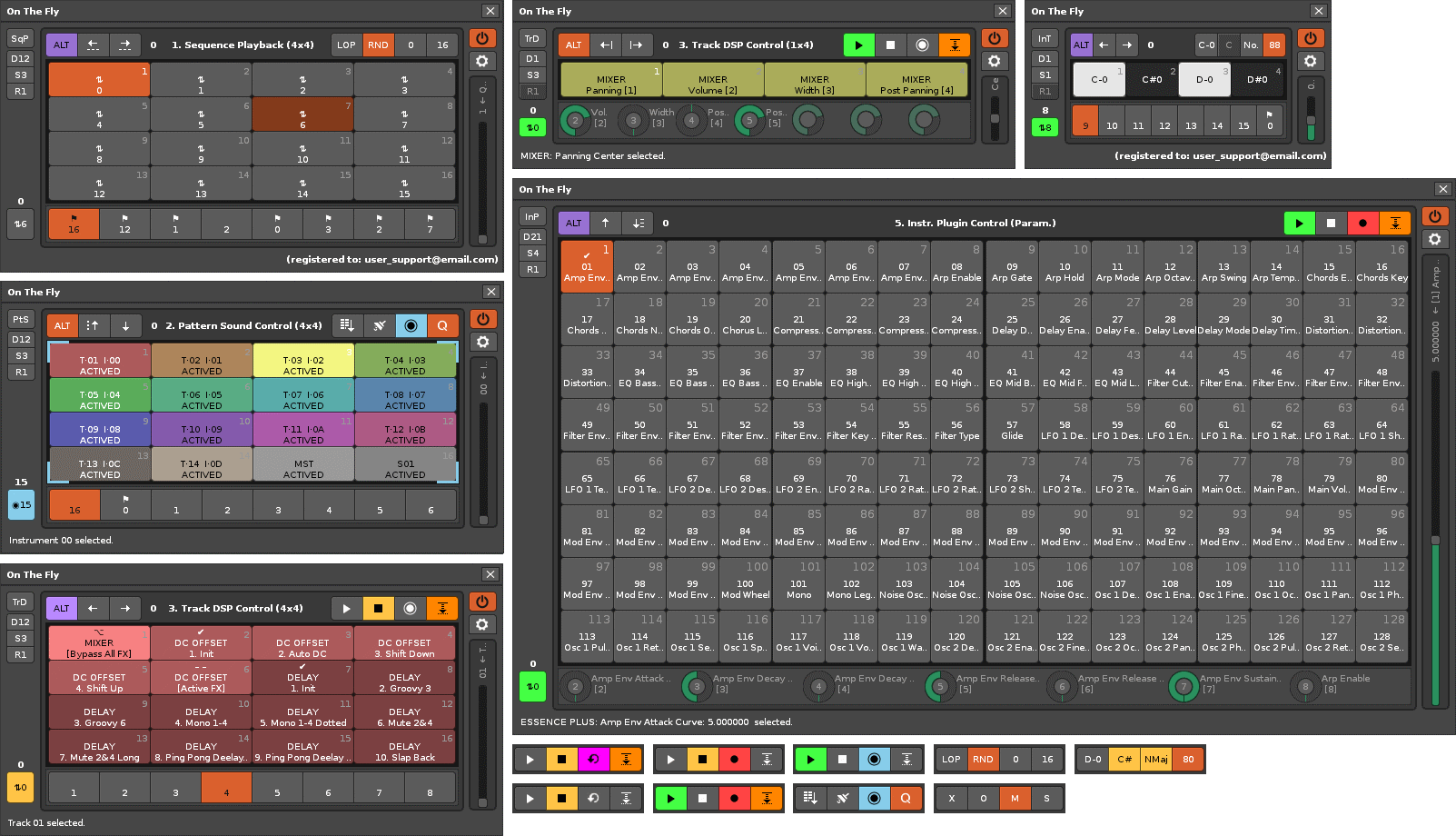
Possible live performance setup. A basic linking scheme to perform a live show and even record it for artistic content creation would be as follows:
- Use the tool On The Fly as the control hub for Renoise, managing the sequence and other live controls. In Renoise, assign MIDI input Device A to create a single MIDI mapping for OTF (*1).
- In Renoise, assign MIDI input Device B to control a specific instrument, then link that instrument to a specific track. Alternatively, you can map this second MIDI device to control OTF more broadly.
- In Renoise, assign MIDI input Device C to control a second instrument, then link that instrument to another track.
- In Renoise, assign MIDI input Device D to control a third instrument, then link that instrument to another track.
- In Renoise, use the audio input for a microphone. This allows you to sing with your voice or capture another real instrument through the microphone.
- Additionally, depending on the sound cards or external audio devices available, it is possible to use two hardware sound devices for listening to the result (*2), so that it is possible to use the input of a sound card «A» for the microphone and the primary monitoring output (speakers) and in parallel, another hardware sound device «B» for the second monitoring output (headphones), at the same time.
(*1) The MIDI mapping for the OTF only needs to be created and saved once. The artist can then load it into any song project via Renoise’s MIDI MAP. This allows the artist to navigate between sequences, tracks, and instruments, and control track sounds (mute, turn off, solo, or override matrix slots), control effects devices and all their effect parameters with very few physical controls, and even control and manipulate the sequence live, respecting the natural rhythmic flow. They can also play other instruments in parallel during a live performance, or even sing.
(*2) Depending on the physical audio devices available on your computer, you can select a second listening device via your operating system’s sound panel in the audio input. This allows you to use sound card «A» as the audio input (microphone) and audio output (listening 1) for speakers, and another sound card or external USB audio device «B» (listening 2) to play the entire output through headphones. Please learn how to make the most of your audio device’s inputs and outputs to run live playback scenes, using OTF as the control center for your Renoise DAW.
Basic requirements for live recording (Live Mode). To begin a continuous, full recording of the entire sequence, a very basic setup is needed. The song project can start with just a pattern, with the number of lines determined by the time signature. This pattern will be the first to be recorded and will be automatically cloned. Furthermore, you only need to organize the tracks to be used and the instruments that will be linearly linked to the tracks (so many tracks, so many instruments). OTF will handle linking them and automating the sequence’s growth and recording. Live recording also allows you to work on partially completed song projects. You can have a drum track already created throughout the entire duration of the song and complete the remaining tracks without stopping playback, preserving what has already been composed.
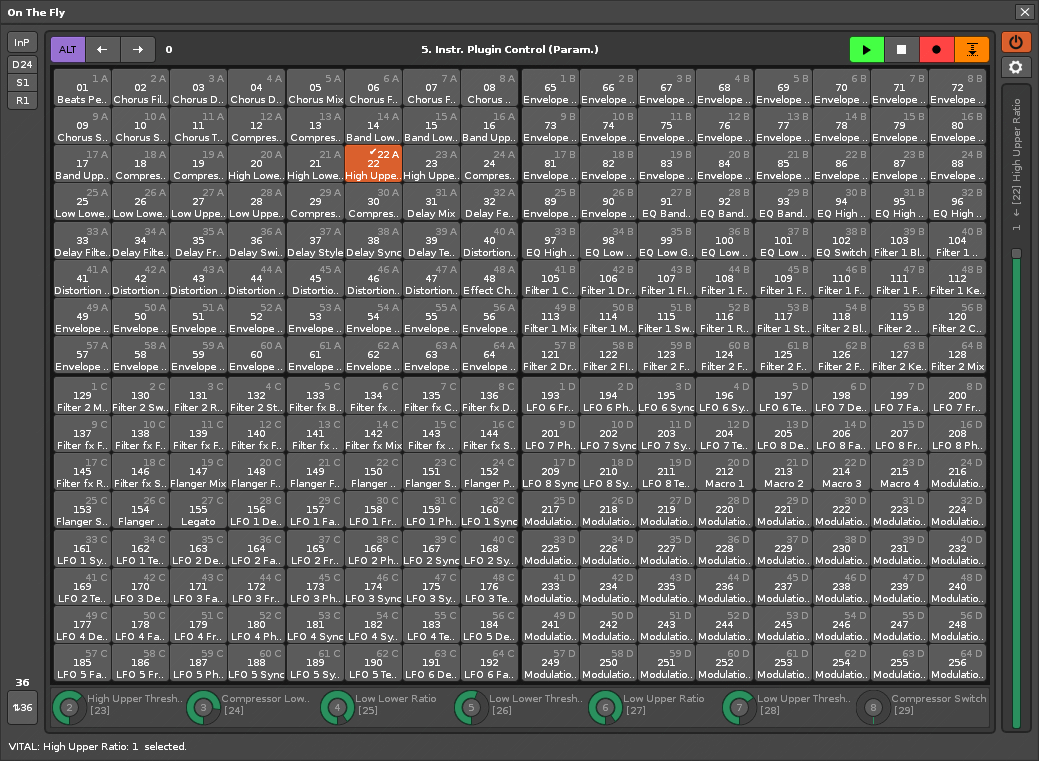
Renoise’s large-scale MIDI mapping problem (lack of integration). The OTF tool effectively solves Renoise’s problems with large-scale MIDI routing and mapping. It also adds MIDI control capabilities that are not available in Renoise. The Renoise DAW was originally designed with composition in mind, not large-scale MIDI mapping. Unfortunately, even some more recent DAWs have the same limitation. MIDI routing/mapping was a later addition, adapted to the existing DAW. This means, for example, that variable, non-fixed elements, such as sequence slots, tracks, instrument slots, or effects devices in each track’s effects chain, require a «unique hardware mapping.» These elements may or may not exist, so if one of them is mapped and then removed, the associated mapping will disappear. This forces the composer to create a unique MIDI mapping for each song project and severely limits the use of physical controls by having to link them to unique parameters or elements, leaving the composer with too few physical controls and, consequently, insufficient control. OTF solves all these problems; route it once in a MIDI mapping to control everything in all your songs.
Paging and distribution as a powerful tool for control. OTF eliminates all the aforementioned limitations, achieving complete control with a single MIDI mapping of the tool, valid for any song project, making full use of the «paging» concept. Thanks to this capability, On The Fly opens up a whole range of possibilities for live playback and recording, the effective use of Renoise on stage, while providing broader and faster control of Renoise, despite its complexity. Furthermore, it is also possible to combine the MIDI mapping of the OTF with Renoise’s own MIDI mapping, leaving all the control in the artist’s hands. And if all this isn’t enough, it achieves great compatibility with most USB MIDI controller devices on the market, thanks to the «distribution capability» of the central panel.
In summary, On The Fly is a powerful control tool for Renoise, designed for live playback, recording, and stage performance. Thanks to its high level of integration, it greatly expands the usefulness of most USB MIDI controllers on the market. It is intended for artists and composers who want to use Renoise not only for composing, but also for performing live.
Please read the user manual provided to know all the details of the On The Fly…
2. Update History.
On The Fly v3.0.175 (November 5, 2026):
- Fixed: The master slider could take an incorrect value under certain circumstances.
- Improved: The wheels and master slider now adopt a unipolar or bipolar (panning) configuration based on Renoise’s default parameter settings. Parameters for external devices (VST, VSTi, and similar plugins) are excluded.
- Modified: The master slider now adapts to the available height. The value text and its reference are also displayed more clearly.
- Fixed: Changing the sequence in Renoise with «Follow Player» enabled could trigger song playback. This no longer happens.
- Modified: SqP [ALT]: Loop [LOP] and Random [RND] now allow the range to be reset (min to max) by pressing and holding [ALT].
- Improved: SqP [ALT]: Loop [LOP] and Random [RND] no longer modify the queue when deactivated.
- Modified: ALT mode (when the button is held down) now changes color.
- Added: Preferences / Miscellaneous: new option «Trk Solo Muted State.
- Added: Preferences: A new section, «Live Sequence Recording», with various behavior settings (e.g., what happens in the middle or at the end of a sequence, and how tracks and instruments are linked):
- REC Trk Switch Non-End.
- REC Seq Non-End.
- REC Trk Switch End.
- REC Seq End ∞.
- REC Slot Muted State.
- Keep Pattern Length.
- Auto Instrument (Pts).
- Linear Distribution Instr.
- Modified: PtS & SqP: Added a new switch, «Live Sequence Recording Mode» (sky-blue switch). When enabled, it allows you to record and play back the entire sequence live, automatically expanding it and filling in the data without stopping playback, ensuring uninterrupted live recording. Don’t just record a pattern—record the whole sequence! Ideal for live performances and demonstrations. Go to Preferences to customize the behavior.
- Added: New sky-blue corner indicators to show when live mode is active.
- Added: Two new wide pad sizes: S8 and S11.
- Improved: Play and Stop buttons: The Play button now also supports playback from the current position when [ALT] is held down. The Stop button now also triggers a «sound panic» when playback is already stopped.
- Modified: Some tooltips have been updated.
- Improved: Some code has been reviewed, and certain loading operations are now faster.
- Updated: The User Manual has been completely revised and modernized.
On The Fly v2.0.148 (October 27, 2025):
- Added: Renoise 3.5.x compatibility (API 6.2).
- Removed: OSC Protocol code for sound has been completely removed.
- Added: Now the sound of the instrument’s notes is played directly (pressed & released).
- Fixed: The sound of notes linked to pads didn’t stop when changing pagination. Pressed and released are now linked.
- Added: Preferences / Sound Config: new option «Force No Sound».
- Added: New on-off & speacker icons have been included.
- Added: The Master Slider can now also control the selection change of buttons 1-8 for the sequence queue.
- Modified: Part of the code has been changed & adapted to the new API.
- Updated: The User’s Guide has been updated.
On The Fly v1.1.145 (April 7, 2024):
- Improved: SqP with ALT enabled: It is now possible to assign the 8 queue slots of the sequence, one after the other quickly (pressing & holding ALT will assign the selected slot & jump to the next one automatically, & so on).
- Added: New text notifications in the bottom bar for the sequence queue.
- Improved: Some text notifications in the bottom bar have been improved/changed with more information & coherence.
- Improved: Pagination button icons are now clearer when changing state, especially for addressing different navigations.
- Fixed: The paging index does not update correctly when changing some panel modes. It now preserves the page index of each panel (does not reset to 0).
- Fixed: Some particular value state for the master slider bar was not correct.
- Added: Pagination now has an automatic top stop. This makes it easier to navigate through the entire available range and prevents you from navigating between empty pages.
- Improved: Now the navigation in the different ranges automatically changes pages when necessary. For example, if you navigate between sequence, tracks, instruments, the center panel will automatically change if the displayed range does not include the selected value.
- Improved: some code has been reviewed.
- Updated: The User’s Guide has been updated.
On The Fly v1.0.136 (March 27, 2024):
- Initial Release.